
bottom


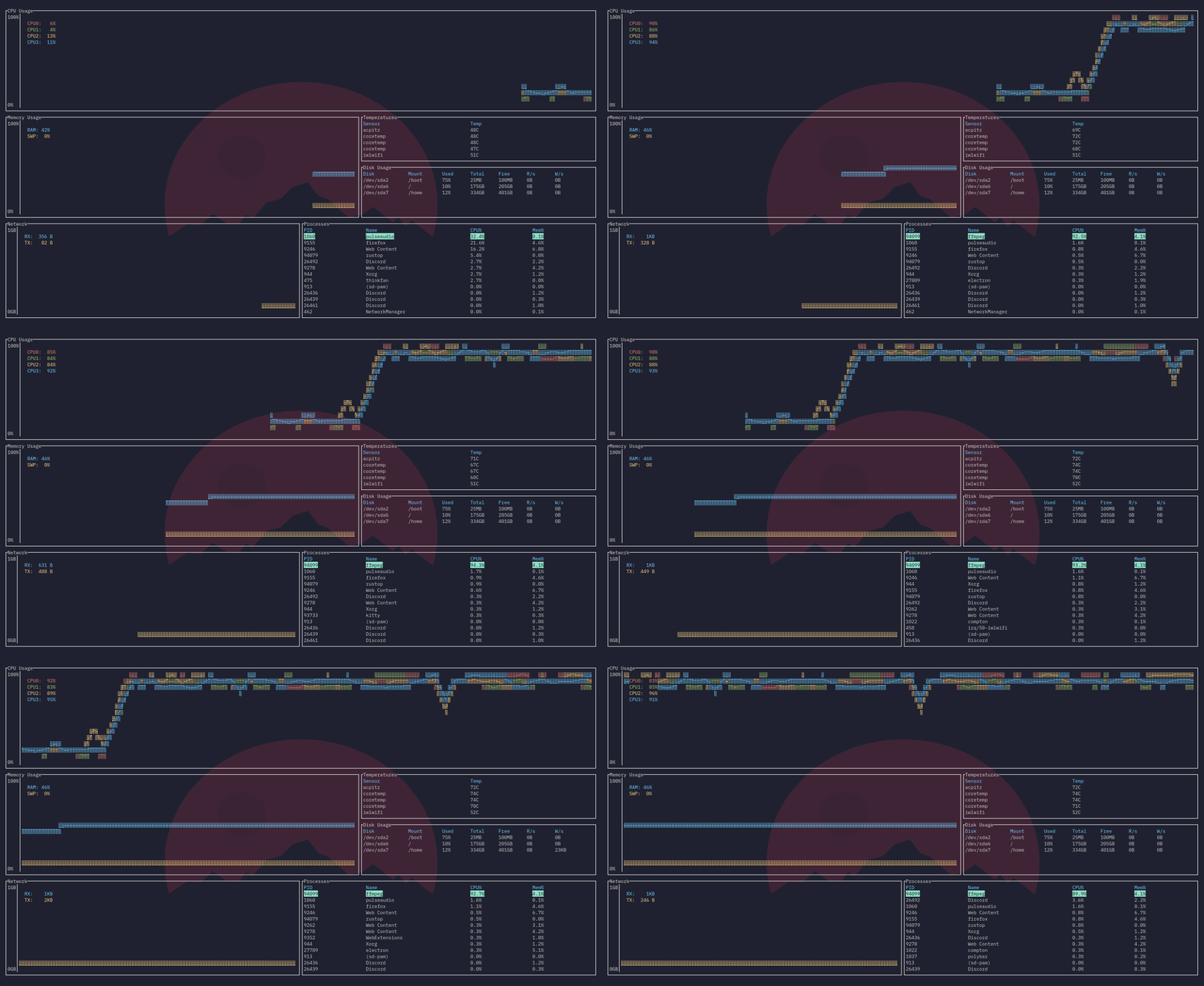
A top clone, written in Rust. Inspired by both gtop and gotop
Installation
Linux
You can install by cloning and using cargo build --release, or download the pre-compiled binary in Releases.
Windows
You can currently install by cloning and building yourself using cargo build --release. You may need to install a font like FreeMono and use a terminal like cmder for font support to work properly, unfortunately.
macOS
macOS support will hopefully come soonTM.
Usage
Note that all options and keybinds on GitHub may reflect the current development build, and not that of the current releases. For now, refer to the crate README for documentation as of time of release.
Command line options
-
-h,--helpshows the help screen and exits. -
-a,--avgcpuenables also showing the average CPU usage in addition to per-core CPU usage. -
-m,--dot-markeruses a dot marker instead of the default braille marker. -
-c,--celsiusdisplays the temperature type in Celsius. This is the default. -
-f,--fahrenheitdisplays the temperature type in Fahrenheit. -
-k,--kelvindisplays the temperature type in Kelvin. -
-v,--versiondisplays the version number and exits. -
-d,--debugenables debug logging. -
-r <RATE>,--rate <RATE>will set the refresh rate in milliseconds. Lowest it can go is 250ms, the highest it can go is 2128 - 1. Defaults to 1000ms, and lower values may take more resources due to more frequent polling of data, and may be less accurate in some circumstances.
Keybinds
General
-
q,Ctrl-cto quit. -
Ctrl-rto reset the screen and reset all collected data. -
fto freeze the screen from updating with new data. Pressfagain to unfreeze. Note that monitoring will still continue in the background. -
Ctrl+Up/k,Ctrl+Down/j,Ctrl+Left/h,Ctrl+Right/lto navigate between panels. -
UpandDownscrolls through the list if the panel is a table (Temperature, Disks, Processes). -
Escto close a dialog window. -
?to get a help screen explaining the controls. Note all controls exceptEscto close the dialog will be disabled while this is open.
Processes panel
-
ddto kill the selected process - I would highly recommend you to be careful using this, lest you accidentally kill the wrong process. -
cto sort by CPU usage. Sorts in descending order by default. Press again to reverse sorting order. -
mto sort by memory usage. Sorts in descending order by default. Press again to reverse sorting order. -
pto sort by PID. Sorts in ascending order by default. Press again to reverse sorting order. -
nto sort by process name. Sorts in ascending order by default. Press again to reverse sorting order.
Mouse actions
- Scrolling currently only scrolls through the list if the panel is a table (Temperature, Disks, Processes). This will change in the future.